Companion Mode is the student's side of Restvo — the side your kids learn in, with exactly one job: show a child what today holds, give them everything each lesson needs, and report back honestly. There is no planning in it and nothing to set up. Everything on its screens was decided in Studio Mode by the educator.
Get it from Google Play (search for Restvo, or use the link on this site). It is free.
Signing in
A student signs in with the username and six-digit access code their educator issued in Studio Mode — no email address, no password. Codes are simple on purpose, so the app protects them: the obvious codes are banned when they are issued, five wrong tries lock the account, and the educator unlocks it from Studio Mode. A lost code is replaced by the educator; the old one stops working at once.
The Today view
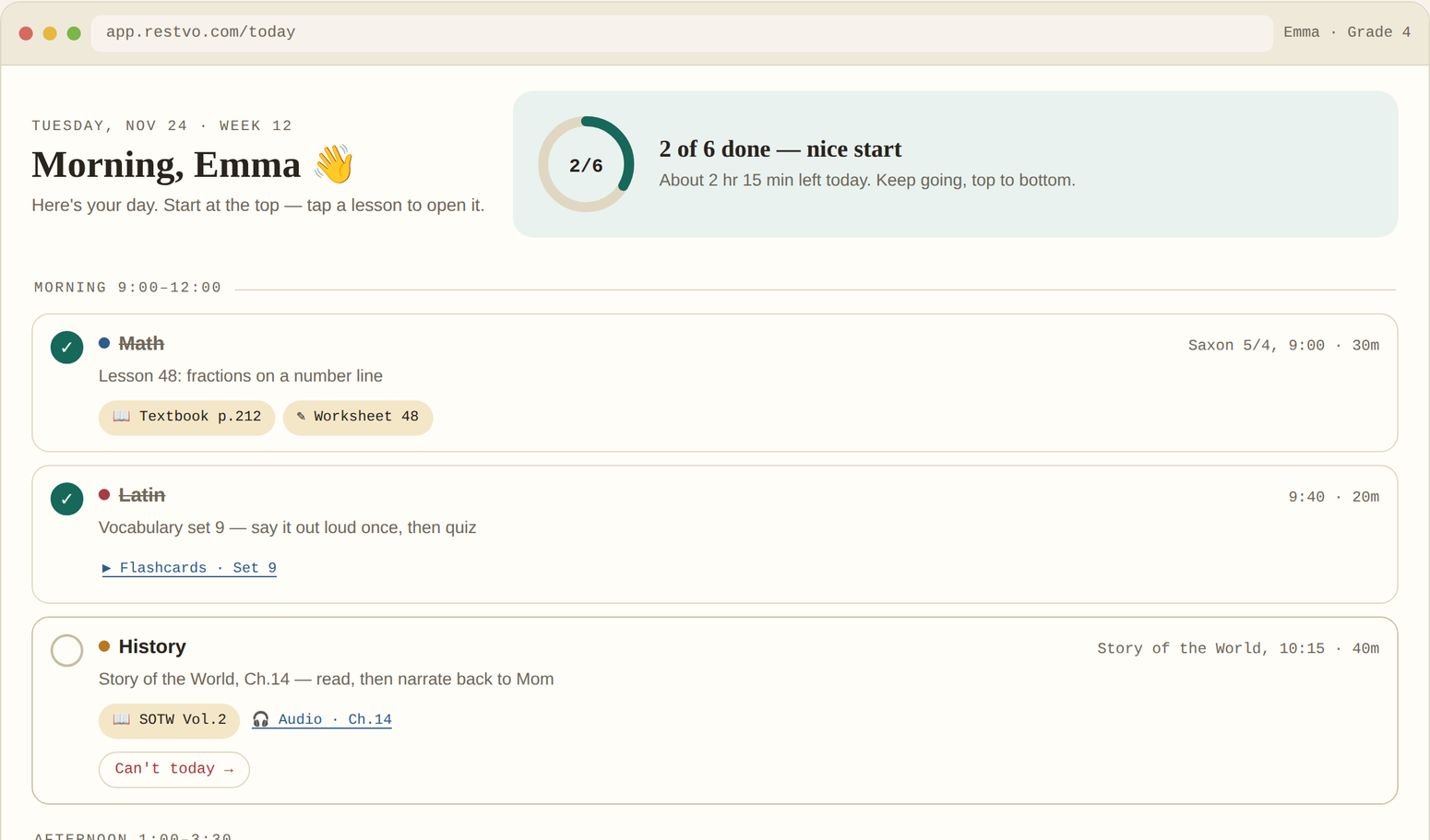
The app opens on Today: the day's lessons in the order they run, each with its materials attached — the chapter to read, the video to watch, the page to print. A progress ring at the top fills as the day gets done. There is nothing to navigate to and nothing to configure; the day is simply there.
Working a lesson
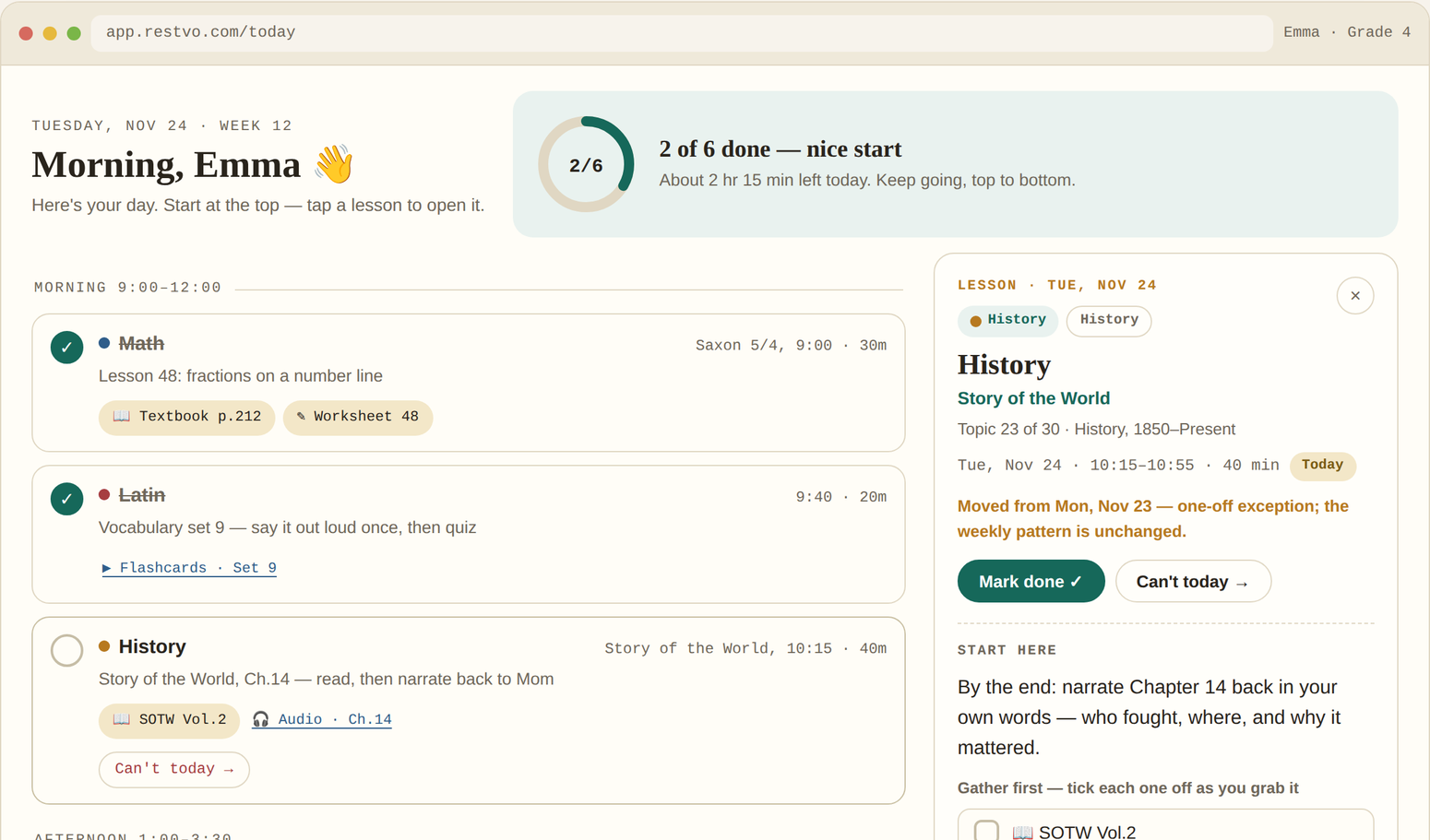
Many lessons carry a full lesson body. Tap the lesson, expand the Lesson card, and the teaching is right there:
- Teach — the concept, explained with worked examples.
- Exercises — practice on the lesson's own material, each with a textbox for the answer. Answers save as they are typed; closing the app loses nothing.
- The reading — the source excerpt the exercises work on, printed in full.
Answered exercises go to the educator for grading. The standard answers are never shown in the app — they live on the educator's side only.
Done, postpone, or help
Every lesson offers three honest endings:
- Done — one tap. The educator sees it the moment it happens.
- Postpone — not today. The lesson moves, and the educator is told.
- Needs you — I am stuck. The lesson lands on the educator's needs-you list instead of quietly disappearing.
Seeing grades
Students see their own grades — per subject, per lesson — as the educator records them, together with any feedback written on their exercise answers. A student always knows where they stand and what to work on next. They never see another student's grades.
The educator's view
Signed in as the educator, the Companion shows today across all your kids: who has started, who is finished, who is stuck — with progress and grade summaries per child. Light touches live here: mark a lesson done, postpone one, clear a needs-you flag. Anything structural — new subjects, new times, a new term — deep-links to Studio Mode, where that work belongs.
When plans change
A lesson that cannot happen today becomes a small decision, stated in plain words. Moving a lesson to another date files a decision card for the educator — keep it here, or propose another day — narrating exactly what is being decided. Moving a whole plan forward files a simpler information card with a single OK. Either way, what happened to the plan is never a mystery, and nobody has to feel guilty about a Tuesday that went sideways.
For parents: your child's login, grades, and unlock button all live in Studio Mode — see How to Use Studio Mode.